

Home Dashboard
Customize your SuiteOp home screen with a personalized grid of widgets that double as navigation and at-a-glance operations.
Your Home is the first screen you see when you log in to SuiteOp. It’s a personalized grid of widgets — each one a window into a part of the platform (Reservations, Tasks, Properties, Inbox, and more) that you can resize, rearrange, add, and remove to fit how you work.
This page covers the Needs attention band, the setup banner, filtering and customizing your Home. For what each widget shows, how its stats and rows open the platform, and how to set up Analytics tiles, see Home Widgets.
If you track your own shifts or availability, a switch at the top of the Home toggles between Organization (the widget grid) and My home, which holds your own working hours, time off and timesheet. Filters and Customize apply to the Organization view only.
The Needs attention band
Section titled “The Needs attention band”Below the filter bar, the Needs attention band rolls up the time-sensitive items across your organization, in this order:
- Guest issues — open guest-portal tickets, and open issues on a stay that’s in progress right now. The chip turns red once the oldest has been open for an hour, and it opens Tasks → Guest issues.
- Failed codes — stays whose access code failed and whose guest hasn’t checked out yet; cancelled stays are left out. The exception is a code SuiteOp has stopped trying to remove from the lock (Failed Deletion after its last automatic attempt — see lock code statuses): it may still open the door, so its stay is still counted through its check-out day, even if the stay was cancelled or the guest has left.
- Stays without a working lock — confirmed stays checking in within the next 72 hours that no lock will open for. See Stays without a working lock.
- Deposits failed — stays whose scheduled security deposit hold was refused.
- To review — arrivals on the selected Home date whose verification needs your review.
- Charges — Folio charges that need your action next.
- Approvals — people with time or cost entries waiting on Costs & Approvals, counted once per person.
- Pre-check-ins not sent — guest pre-check-ins completed in the last 7 days that your PMS wasn’t told about, so PMS messages waiting on them (such as check-in instructions) don’t go out. Shown only if you can manage integrations; it opens the connection’s Push controls, or Integrations when several connections are affected.
- Low battery — devices with a battery below 30%.
- Messages — guest conversations with messages you haven’t read, once your organization uses the Inbox.

The band only shows items you have permission to see. Every item follows the Home property filter except Pre-check-ins not sent, which covers your whole organization, and Messages, which always counts all the conversations you can access.
Stays without a working lock
Section titled “Stays without a working lock”This chip counts confirmed stays checking in during the next 72 hours whose guest has no working way in. The window always starts from now, whatever date you pick on the Home. Click it to open Stays without a working lock, which lists up to 200 stays with the reason for each. When a lock account isn’t connected, the row offers Reconnect only if you can view integrations; otherwise it asks you to get someone who manages integrations to reconnect it.
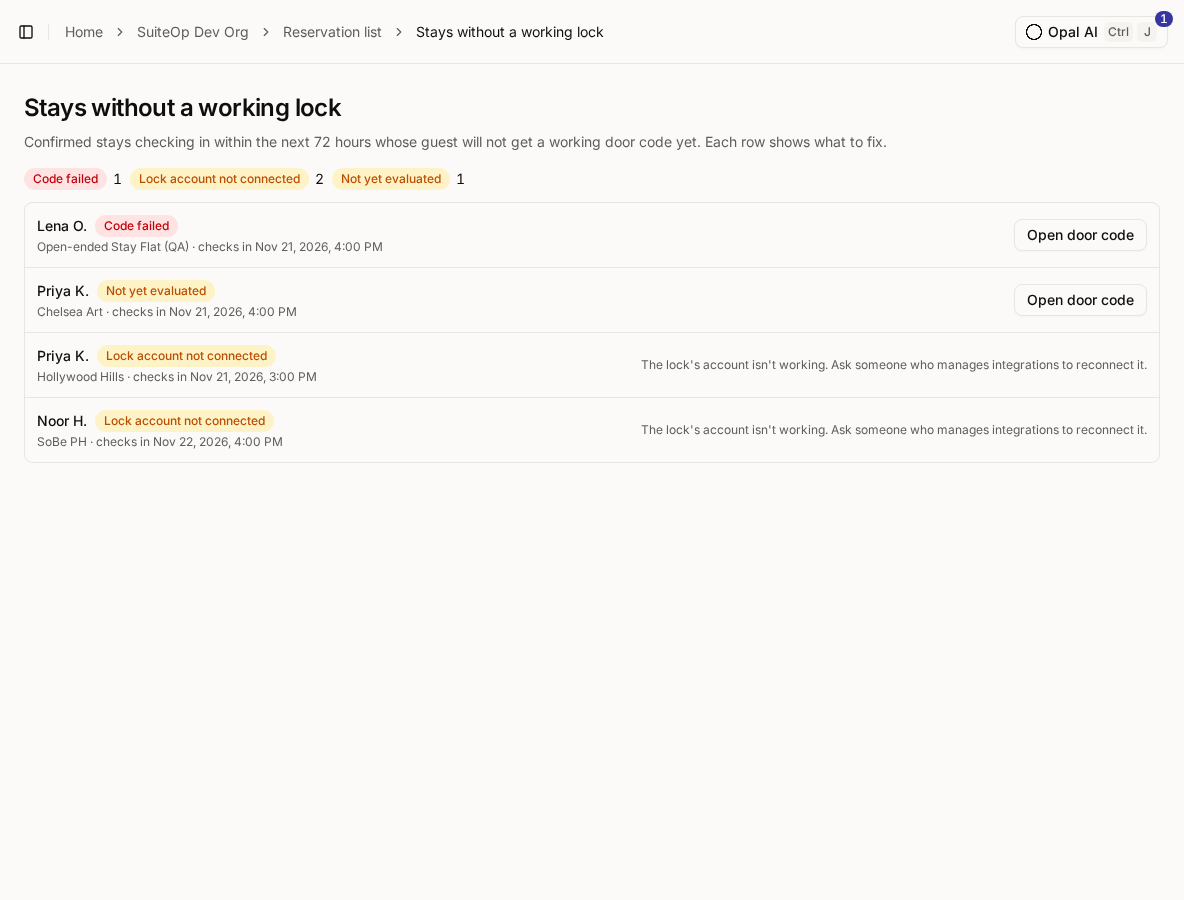
The page includes stays whose code failed, but the chip leaves them out because Failed codes already counts them. You need permission to view reservations to see the chip and the page.
The setup banner
Section titled “The setup banner”Below the Needs attention band, a setup banner tracks your path to going live. While required steps remain, it shows how many are left and what you’re Waiting on; once nothing is blocking, it shrinks to a one-line reminder. Its button reads Go live when nothing required is left and you aren’t live yet, and Open setup otherwise. It isn’t one of the customizable widgets.
The banner disappears once you’re live and every recommended item is done, and comes back if something slips (for example, a newly imported property that isn’t set up yet). See Initial Setup & Onboarding for what the Setup page covers.
Can I hide the setup banner or the unread messages count?
Section titled “Can I hide the setup banner or the unread messages count?”Yes, for yourself. Once you’re live and nothing is blocking, the one-line “A few recommended items left” reminder has an X (Hide this reminder), and the Messages chip in the Needs attention band has one too (Hide unread messages from Home). Each hides that line only for you, in this browser; teammates still see it, and the Inbox still counts your unread conversations. The banner for required steps, and the Go live reminder before launch, can’t be hidden.
Filtering your Home
Section titled “Filtering your Home”The filter bar at the top of the Home rescopes the band and every tile at once, except the Inbox, Approvals and Shifts tiles, which always cover everything you can access.
- Date. Choose the day your Home reflects — today by default.
- Properties and property groups. Narrow Home to specific properties, or pick a property group to scope to all of its members in one click.
- Show unlinked listings. In the Filters menu (with permission to view reservations), choose whether reservations on PMS listings not linked to a property are counted. It starts at your organization’s default, the same one the Reservations list uses.
Your property and group selection is saved per organization in this browser and restored when you reload or come back later. It doesn’t follow you to another computer or browser.
Customizing your layout
Section titled “Customizing your layout”Your Home layout is saved for you in each organization — your changes affect only your own screen, and they follow you across devices.
-
Enter Customize mode
Click Customize. Each tile gains a size toggle, Move up / Move down controls and a remove (×) control.
-
Rearrange widgets
Drag a tile to move it. The grid reflows to fill any gaps.
-
Resize a widget
Use the size toggle on a tile to switch it between Small and Large.
-
Add or remove widgets
Click × on a tile to remove it. To bring widgets back, pick them from the Add widgets panel beside the grid — anything you don’t have permission for never appears.
-
Save your changes
Click Done to save your layout. Nothing is saved until you do. Reset puts back the default layout (only the widgets you can see), and also takes effect when you click Done.