

How to Create Saved Filter Views
Save the filters you use most as a named view, then open, share and manage it from the list toolbar.
Save the filters you use most as a named view, so you can apply the whole combination again in one click.
-
Go to a list with saved views
Open a list such as Tasks, Reservations, or Properties.
-
Select the filters you want
Click + Filter and choose filters like relative dates and property groups. The options change based on the screen you’re on.
-
Click “Save as view”
Once a filter is active, Save as view appears on the right of the toolbar. While a saved view is open, it saves a copy under a new name; on lists other than Reservations and Properties the button then reads Save as….
-
Name the view and choose who can use it
Enter a name, then choose a Visibility: Organization makes the view available to everyone in your organization, and Private keeps it visible only to you.
Open by default sets whether the page opens on this view: Off, For me, or For everyone. For everyone appears only for members with the Manage organization permission, and only an organization view can be everyone’s default. Each member can still set their own.
-
Click Save
The view is saved. On Reservations and Properties it’s listed under More views (see Views as tabs); on other lists it appears in the Saved Views menu at the start of the toolbar.
Using and managing saved views
Section titled “Using and managing saved views”On lists such as Tasks, click Saved Views at the start of the toolbar and pick a view to open it; the button then shows the view’s name. Clear view leaves the view but keeps its filters.
To update a view, open it, change its filters, and click Save view. A dot marks the unsaved changes until you do, and Reset clears the filters.
To manage your views, click + Filter and select Saved Views. Search for a view, or switch between the Favorites and All tabs; click the star next to a view to add it to your favorites.
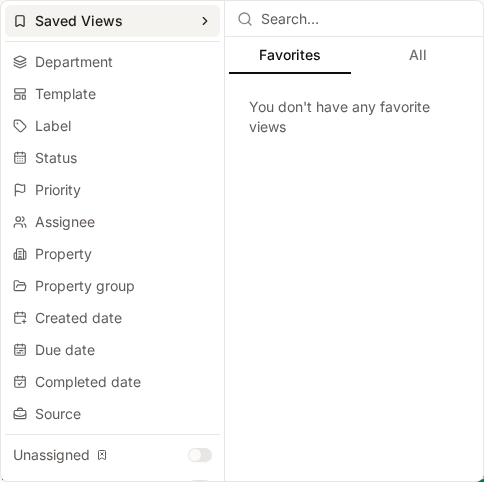
The menu next to each view offers:
- Set as my default — the page opens on this view for you. Select Remove my default to stop.
- Set as organization default — everyone in the organization opens the page on this view unless they set their own default. Select Remove organization default to stop. These items appear only on organization views, and only for members with the Manage organization permission.
- Edit — change the view’s name or visibility.
- Delete — permanently remove the view.
Only the person who created a Private view can edit or delete it. An Organization view can be edited or deleted by its creator or by a member with the Manage organization permission. Other members don’t see Edit and Delete for it.
Views as tabs on Reservations and Properties
Section titled “Views as tabs on Reservations and Properties”On the Reservations and Properties pages, views also appear as tabs above the list; More views lists all views; click Pin to tabs beside one to add it as a tab. In + Filter > Saved Views, a pin takes the place of the star, and the first tab is Pinned instead of Favorites. After you change a view’s filters, save with Save view, or keep the original and click Save as view. Reset discards your changes.
On the Schedule tab of All Tasks, views sit in a switcher above the schedule instead of the + Filter picker. Its menu offers Edit…, Duplicate…, Make default for me, Make default for everyone (members with Manage organization) and Delete….
The Schedule tab reopens on the view you last had open there in that browser, ahead of your own default and the organization default. To open on your default again, choose Default view in the switcher; your default then applies the next time All Tasks loads with the Schedule tab open.