

Notification preferences
Set quiet hours, turn email, text and push on or off, and choose which events reach you on each channel.
Each member chooses how SuiteOp notifications reach them. Open your profile and select the Notifications tab — or click Preferences on the Notifications page. You can set quiet hours, turn whole channels off, and pick the channels for each event.
Delivery channels
Section titled “Delivery channels”Turn a whole channel off, then click Save channels. A channel that’s off stays in the events matrix, but its column is greyed out.
- Email — sent to the address on your profile, on by default. Turning it off stops every notification email, Integration disconnected included.
- Text — needs a verified phone number. Click Verify phone, enter your mobile number, and type the 6-digit code SuiteOp texts you. Text notifications are available only for US and Canada (+1) numbers.
- Push — managed by your devices: push reaches each device where you’ve signed in to the SuiteOp mobile app and allowed notifications. Use the Push column of the matrix to choose which events ping your phone.
Quiet hours
Section titled “Quiet hours”Turn on Enable quiet hours to hold back non-urgent notifications during a daily window. Set Start and End (22:00 to 07:00 by default) and your Timezone (IANA), such as Europe/London. Urgent alerts always go through.
Events matrix
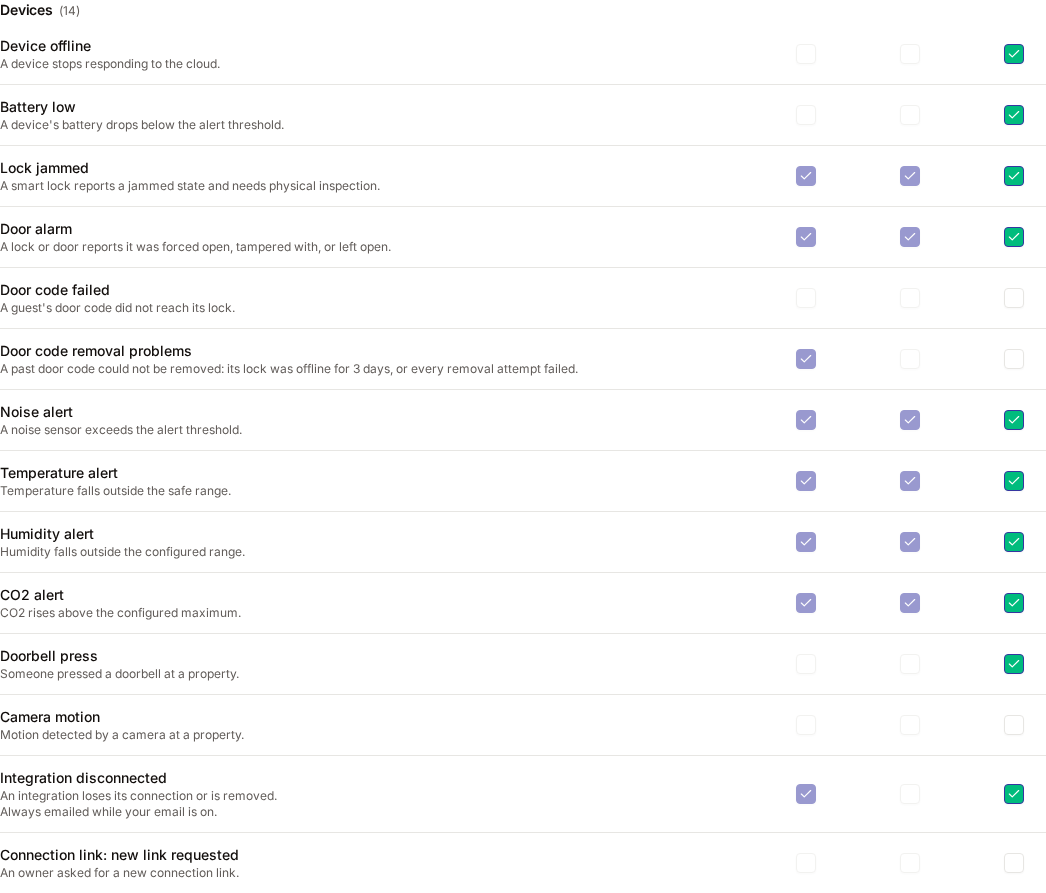
Section titled “Events matrix”Under Notification events, tick the channels each event should reach you on. The events are grouped as in What can trigger a notification, and each row says when the event fires. The noise, temperature, humidity, CO2 and water leak rows show only once your organization has a device that can raise that alert.
Not every event starts with every channel on:
- Text starts off for every event except Lock jammed, Door alarm, Water leak detected and the noise, temperature, humidity and CO2 alerts.
- Email starts off for many events, including every task event except Mentioned in a comment, plus Guest message, Guest requires manual review, Device offline, Battery low, New member invited, Guest waiting too long and Guest still waiting — escalated. Tick it for the events you want in your mailbox. Guest message covers every guest message, Airbnb, Booking.com and Vrbo messages that arrive through your PMS included. PMS messages reach the conversation’s assignees (everyone who can open it while it’s unassigned), at most once every 15 minutes per conversation.
- For example, Door code failed and Escalation with nobody to take it start in the app only. Payment failed, the deposit alerts, Blacklist match and Reservation needs review start with push off, and Camera motion starts with every channel off. The Integration disconnected email box is ticked and locked: Always emailed while your email is on.
Why don’t I get Playbook alerts on my phone or by text?
Section titled “Why don’t I get Playbook alerts on my phone or by text?”Alerts a colleague set up with a Playbook’s Send a notification step — for example “task started” or “task completed” alerts — don’t follow the Tasks rows. They follow your own Playbook notification row, under System in the events matrix. It starts with Push on and Email and Text off (the alert always shows in the app): tick Text there if you want these alerts by text, and keep Push ticked for your phone.
The Task completed row is a separate, built-in notice: it reaches only the task’s assignee, and only when someone else completes the task. The exception is a task you shared with a partner company: when the partner completes it, you’re told even when the partner’s own assignee completed it — the person who shared the task while they still have access to its property, otherwise the members with Manage company connections for that property.
Saving and testing
Section titled “Saving and testing”- Save Changes saves quiet hours, the matrix and any channel switch you changed; Save channels saves only the channel switches.
- Reset to defaults returns every event to its default channels as soon as you confirm. Quiet hours aren’t changed.
- Send test on the Email and Text rows checks delivery. It appears only once the channel is saved on — if you’ve just turned a channel on, click Save channels first.
- Test texts are limited to one every 30 seconds and 5 per hour.
Invited members who haven’t signed in yet
Section titled “Invited members who haven’t signed in yet”Someone you invite gets no notifications (email, text, push or in-app) until their first sign-in. From then on, their own preferences apply. Their door codes aren’t affected: codes still go to the locks as before.
Changing a team member’s notifications
Section titled “Changing a team member’s notifications”Members with the Manage users permission can change the notification settings of another member whose role is at their own level or below, except the Owner:
- Go to Settings > Members and open the member.
- Select the Notifications tab.
- Make your changes and click Save changes.
You choose which events reach the member on each channel. Their quiet hours and Delivery channels switches stay theirs: if they’ve turned email off, no email reaches them.
To change one setting for several members at once, tick them in the members list, click Notification settings, choose the notification, the channel and On or Off, and save. Selected members you can’t manage are left out of the change.
Troubleshooting
Section titled “Troubleshooting”- Not getting texts? Check the Text row under Delivery channels. Verify phone to enable means your number isn’t verified yet. If it says SMS is off because this number replied STOP, text START to SuiteOp to turn it back on.
- Not getting push? Push reaches only devices where you’ve signed in to the SuiteOp mobile app and allowed notifications.
- Too many alerts? Untick events in the matrix, or turn on quiet hours so only urgent alerts reach you out of hours.