Ten new features in one week, so here are the ones worth bookmarking: playbooks that keep time, a Day view that thinks in hours, door codes a guest can actually remember, and fewer surprises waiting at check-in.
Playbooks
Run a playbook on a schedule
Playbooks can now run on a schedule and gather open tasks with the new Find tasks step, now available to everyone.
Wanted a morning list of overdue tasks without putting it together by hand? Until now, a playbook only ran when something happened.
Playbooks can now run On a schedule: on chosen days at a set hour, every few hours, every few days or monthly, in the time zone you pick. Pair it with the new Find tasks step to gather open tasks by department, template, status, assignee or due date, then post the list to Slack or work through it in later steps.
Open a playbook, click Add Trigger, and choose the Schedule category. When Find tasks comes back empty, the run stops by default, so nobody gets an empty message.
The schedule starts when you publish, and a run can begin up to 15 minutes after the hour. You need the Manage agents permission to build playbooks.
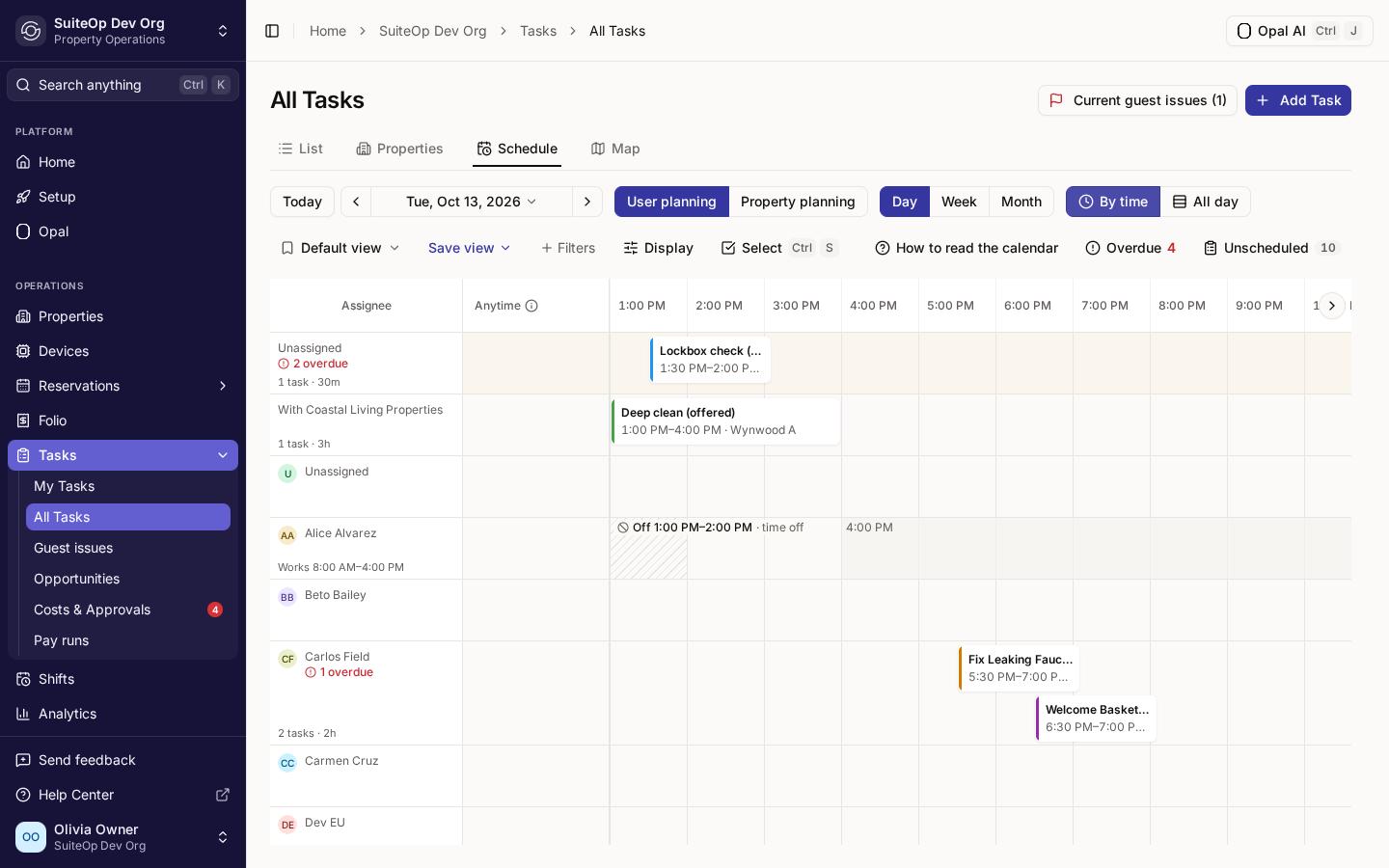
The Day view's By time layout is now an hourly timeline that shows how long each task runs and when each person works, is off, or is free.
Trying to work out who’s free at 2 PM? The Day view used to group work into two-hour bands, which hid how long jobs take and when people are actually around.
By time is now an hourly timeline. Each task stretches across its hours, from its planned start or its time window, for as long as its estimate. A task shorter than about an hour and a half gets a wider card so its name fits, so go by the times printed on the card. Each person’s row shows their working hours, part-day time off and days off, and on today a line marks the current time.
Open Tasks, then All Tasks, the Schedule tab, Day and By time. Drag a task to an hour to plan its start, onto Anytime to clear the planned start, or onto Unscheduled to take it off the day. Each move asks before it saves. Display turns working hours and time off on or off.
Times follow your organization’s time zone, and a task with no estimate counts as 30 minutes.
Tasks across their hours, with working hours and time off on each row.
Choose the door code when you change a guest's code
Change code on a reservation now lets you type the PIN yourself instead of generating a random one, now available to everyone.
A guest asked for a code they’ll remember? Until now, Change code could only generate a random one.
You can now pick: Generate a code as before, or Enter a code and type the PIN yourself. Every door on the stay gets that PIN, and the previous code is retired.
Open the reservation, click Change code, choose Enter a code and type the New PIN: digits only, at your organization’s code length.
SuiteOp checks the PIN against the codes already in use before it installs it. If it can’t use your PIN, it says so rather than quietly swapping in a random one.
You can now switch on the selfie movement check in your identity check step, so guests blink and turn their head to prove the selfie is live.
Worried a guest could hold up a photo instead of taking a real selfie? Until now, the movement check couldn’t be switched on.
The selfie movement check asks the guest to blink and turn their head, and checks those frames against the selfie. A blink with one eye counts too, so guests who can only close one eye can still pass.
Open Settings, then Verification steps, and open your identity check step. In ID check policy, set The selfie movement check to Allow one retry or Stop and review.
It starts on Disabled, so nothing changes until you turn it on. It needs Ask for a selfie to be on. If manual upload is on, a guest who can’t do the movement check can upload a selfie instead, and it goes to your team for review.
Needs attention now flags a missing unit code or guest portal
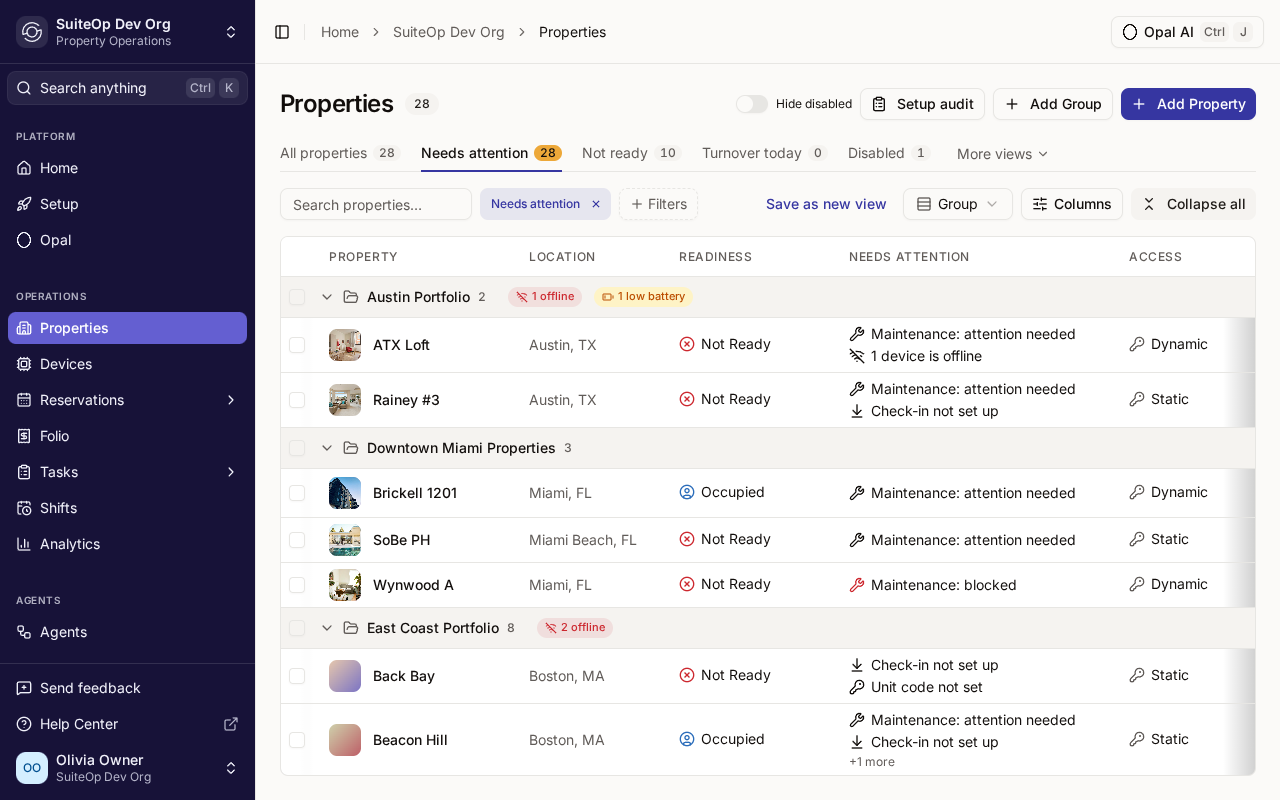
The Needs attention tab on Properties now also lists properties with a blank unit code or no guest portal, so you can fix them before a guest finds out.
Onboarding a lot of units at once? Until now, a property with no door code or no guest portal looked fine on the list until a guest arrived and hit the gap.
Needs attention now also flags Unit code not set when a property uses a fixed unit code that’s blank, and No guest portal when no portal reaches the property. Each reason links straight to the setting that fixes it.
Open Properties and the Needs attention tab. The tab count and select-all bulk edit include these properties too.
A property covered by your organization’s default portal isn’t flagged. A portal assigned through a group or tag counts as well.
Unit code not set now shows beside the other reasons a property needs attention.
A long weekend's worth in one go: three features leave early access and are now available to everyone, guests stop coming back just to finish their deposit, and a long list of fixes keeps door codes, payments and playbooks in step.
Tasks
Subtasks, now available to everyone
Break a task into smaller tasks, each with its own department, assignee and due date, and see from the main task how many are done.
A turnover is rarely one person’s job. Until now, splitting it meant separate tasks with nothing tying them together.
Open the main task and, in the Subtasks section, click Add subtask. Fill it in as usual and save. The main task shows a count such as 2 of 3 done, and each subtask shows Part of: with the main task’s title, so whoever works it can find the bigger job. Subtasks work in the mobile app too, and a playbook’s Create task action can file its task under the task that started the playbook with Add as a subtask of the triggering task.
A subtask stays on the same property as its main task, and goes one level deep only. Completing or cancelling the main task asks you to confirm and leaves open subtasks open, so close those separately.
One live board of every open guest problem, oldest first, with an alert when an issue has been open for an hour.
A guest with no hot water shouldn’t wait because the task sat in someone’s list. Until now, there was no single place that showed what’s going wrong for guests right now.
Open Tasks, then Guest issues. The board lists open guest tickets and the issues reported while a guest is staying, oldest first, with how long each has been open. Stays with an open issue carry a chip, and the mobile app has a matching screen. To keep it on your dashboard, click Customize on Home and add the Guest issues tile.
When a current guest issue has been open for an hour, SuiteOp sends a Guest issue open an hour notification to managers and the assignee. Turn it on or off with your other notification settings. Your tasks and guest tickets themselves don’t change.
Payments
Guests can save a card for the deposit any time, now available to everyone
Guests no longer have to come back to finish the security deposit. They save a card whenever they do their check-in, and the hold goes on automatically on the day you chose.
Asked for the deposit a few days before arrival? Guests who did their check-in early used to find the deposit step locked, and some never came back to finish it.
Now a guest can complete the deposit step at any time by saving their card. Nothing is charged or held then: the portal tells them the date, and the hold is placed on that card automatically on your Place hold X days before check-in setting. If a guest completes the step after that point, the hold is placed right away.
You’ll find the setting on the deposit in your Protection — Waiver & Deposit step. It applies to Stripe deposits taken as a hold. Deposits charged instead of held, and other payment providers, work as before.
BillingID checks and translation no longer use your AI allowance. Guest ID checks, document checks, task photo checks and translation no longer count against your organization's monthly AI credit allowance.
Mobile appTwo shortcuts in the mobile app. Copy a reservation's guest portal link straight from the app, and hand a task whose due date you set by hand back to its guest stay with one tap, with Undo.
ShiftsTime off stands out on the schedule. Time off and sick days are now red in every schedule view, and the days someone doesn't work are a clear grey.
IntegrationsAirbnb listing health shows the stays behind it. The Airbnb listing health card on a property now lists the stays Airbnb holds against the listing, such as low reviews, policy violations and host cancellations, each linked to its reservation, with review categories and tags in plain words in every language.
PaymentsStripe charges you can recognise. Every Stripe charge SuiteOp creates now carries a description of what it's for, such as an early check-in request on a reservation, plus the reservation, property, upsell and guest details, so it's easy to match up in Stripe.
NotificationsNotifications you can click through. Web addresses in a notification are now clickable, and a notification that opens a page can also be expanded to read its full text.
AutomationsMark guests checked in or out from any playbook. The Mark Guest as Checked In and Mark Guest as Checked Out actions now work in playbooks started by tasks, payments and webhooks, not only by reservations.
IntegrationsSmoother PMS connections. You can map a PMS listing onto a property that only has Airbnb in one step, with the PMS listing as the main listing and Airbnb kept as a channel. Connecting Apaleo now grants Apaleo Pay in the same consent, and PMS connections that send you to the vendor first confirm that guest messages are stored in your data region and deleted when you disconnect.
+45 fixes
Tasks In the mobile app, a task saved without a time lands on the day you picked, and a new task's due date defaults to your organization's today.
Tasks The Android app no longer closes when you tap Unassigned in Create task.
Tasks In the mobile app, a task a manager takes or reassigns shows up in the right lists, counts and My Schedule straight away.
Tasks Removing a team member now takes every one of their waiting tasks off them and offers each to auto-assignment, not just the first 500.
Tasks A booking moved to another unit no longer duplicates or re-times its cleaning tasks.
Tasks A deleted task that still has pay on it now shows as Deleted in Tasks & Payments and in timesheets.
Tasks Auto-assign now shows when it picked someone because they finish within their working hours, and warns when nobody can.
Tasks On a job template's Capacity tab, a property that overrides one side of the time window now also shows the side it still takes from the template.
Reservations Stays from Guesty and other PMSes that report check-in themselves now switch to Checked out a week after checkout, and stay that way when the PMS re-sends an old status.
Reservations Airbnb-only stays keep their adults, children and infants split, and Calry stays never show fewer guests than their own breakdown.
Reservations Airbnb stays of up to 122 nights are always picked up, including some stays over 91 nights that were missed before.
Reservations When Airbnb moves a booking to another listing, the old stay is now cancelled.
Properties Photos you delete from a property gallery no longer come back during a PMS photo sync.
Integrations Hostfully no longer asks you to reconnect when the problem is on SuiteOp's side.
Integrations When OwnerRez (through Calry) refuses guest messages because its messaging agreement is unsigned, the sync error now says so and tells you to sign it in OwnerRez.
Integrations A newly connected iCal feed's first sync no longer goes missing.
Integrations Airbnb reviews keep syncing for accounts with many listings.
Devices Salto KS sites now show their subscription capacity, and access errors caused by a full subscription say so.
Devices A Lockly lock with no time zone now shows a warning on its Controls tab that says how to fix it.
Access codes Fixed door codes are now display-only, and lock takeovers or SmartThings syncs no longer delete a property's fixed code or its PIN.
Access codes Guests moved to another unit get their new door code, and departing guests lose theirs, even when a code is shared with a stay whose automatic scheduling is off.
Access codes Door codes, failed-code alerts and deposit release dates follow the checkout day on the guest's listing.
Access codes Door codes with no start time now show as delivered instead of staying pending.
Access codes Editing a Seam door code no longer fails after Seam accepted it, and a PIN that clashes with another stay's deleted code retries, then tells you, instead of silently never landing.
Access codes A check-in step pointing at a deleted lock now warns you and lets you remove the link, so guests get their reservation code again.
Access codes The guest Access preview now shows the building doors guests are given, Building Entrance first.
Payments The billing page's upsell revenue no longer counts a checkout extra once its booking was fully refunded or lost a dispute.
Payments A fee a playbook adds from an upsell is now collected on the upsell's payment account, so the guest can pay it.
Payments A full Hyperswitch refund after a partial one now refunds only what's left, and Hyperswitch captures no longer fail after the guest was charged.
Payments A damage waiver whose name was cleared shows as Damage Waiver at guest check-in instead of a nameless card.
Payments The Folio no longer shows a second waiver or deposit row for a payment that already belongs to a listed charge.
Payments A fee you add without ticking Requested by guest no longer offers Approve, and Add Service Fee refuses a payment account the guest could never pay.
Payments After Apaleo Pay setup, the account page tells you the account is switched off and lets you switch it on in one click.
Payments The paid-in-the-last-30-days total no longer counts older charges imported from the previous SuiteOp app as this month's revenue.
Automations Inside a playbook Repeat, a step its own filter rules out now moves on to the next item instead of ending the Repeat.
Automations A Run JavaScript step that uses too much memory or returns too much data now fails with a clear message instead of disrupting other playbooks.
Automations A delayed playbook step is no longer silently skipped after an interruption at the wrong moment.
Account After 5 wrong passwords, sign-in is locked for 5 minutes instead of 15, and the sign-in screen says how long.
Team Teams with more than 100 members see every saved person's name, and Home loads every member of a property group, not just the first 500.
Team Revoked API keys no longer show up as inactive members.
Opal Opal now looks for the right tool before saying it can't help, and its website chat stops repeating that a teammate will follow up.
Opal In Slack channels shared between workspaces, Opal answers for the workspace that installed it and keeps its link previews in your own workspace.
Languages Hindi now covers every screen on web and mobile, so Hindi users no longer see English in the inbox, contacts, integrations and payments.
Guest portal Two guest portal tabs on one phone can no longer bring back a door code that was deleted.
Security Managers limited to some properties no longer see legacy DocuSign signers for other properties, and a guest's ID document among task photos is never turned into a viewable link.
A Friday for the details: house rules that can finally go their own way, a clear look at which protection rule earns its keep, and a Schedule that's happy on a tablet. Plus a stack of fixes, so the weekend starts tidy.
Properties
Give one property its own house rules
When a property's house rules are shared with other properties, you can now give that property its own copy and edit it without touching the rest.
Need one property to have different house rules from the others it shares them with? Until now, the warning told you any edit changed every property, and there was no way out.
Open the property, then Settings, Property, and the Wi-Fi & house rules card. On the shared-rules warning, click Use separate rules for this property. The property gets its own copy of the rules in every language, and from then on your edits stay on that property only.
Guests see the same text until you change it. Save or cancel any unsaved house-rules edits first. A property can’t be linked back to the shared rules afterwards.
Analytics
See how each guest protection rule performs
The Guest protection card in Analytics now breaks your numbers down by protection rule, with each rule's waiver options one click away.
Running more than one protection rule? Until now, the Guest protection card only showed totals, so you couldn’t tell which rule earns the most or where guests drop off.
Open Analytics and the Guest Store tab. Under By protection rule on the Guest protection card, each rule shows Guests offered, Completed, Chose waiver / deposit, Staff-exempted, Not done by check-in, Waiver revenue, Revenue per guest offered and Deposits captured. Click Show waiver options to see each option’s own numbers.
Rules are recorded from October 2026, so earlier guests and payments show as Unattributed or Unrecorded option. A rule offered to fewer than 20 guests shows Not enough guests yet. Rules reach different guests and properties, so compare them with care: this isn’t an A/B test. You’ll see the table if you can see payment data.
On a tablet or other touch screen, the Schedule now shows a task's or stay's card on the first tap, opens it on the second, and scrolls when you swipe.
Planning from an iPad? Touch has no hover, so the first tap used to open the task straight away, and a swipe that started on a card dragged it instead of scrolling.
Open Tasks, then All Tasks, and the Schedule tab. Tap a task or a stay to see its card, and tap the card to open it. To move a task, press and hold it for a moment, then drag. Unscheduled opens as a drawer over the calendar, and you can drag a task from it onto a day.
Mobile appFind units by street address on the mobile calendar. In the mobile calendar's Expanded view, each property row now shows its street address under the listing name. Properties with no street keep showing their nickname or city.
Mobile appLess typing in the mobile app. The Wi-Fi card on a property's screen now has a copy button for the password, and Create task now autocorrects the task name and description.
IntegrationsClearer listing mapping. When you map listings to properties, every row's picker now shows the full property list. Properties that can't take the listing are greyed out with the reason, and a refused map tells you why.
IntegrationsRMS Cloud in the integrations catalogue. RMS Cloud now appears in your integrations catalogue, so you can connect it yourself.
TasksRecurring tasks keep up with time zone changes. After you change a property's or your organization's time zone, upcoming recurring tasks move to the new local time without duplicates, even when an overdue task or a second edit gets in the way, and a task finished during the change can be reopened.
+17 fixes
Tasks User planning's Week view now stays on the week you chose, and Property planning no longer blanks for a moment as it moves to a new week.
Tasks Task template sections on General, Arrival and Completion show their names again instead of a long id.
Tasks A forgotten timer stopped for a deactivated member who works without shifts now pauses their task too, instead of leaving it in progress.
Web app With a record open beside the Reservations or Properties list, the view tabs and filters stay clickable, and the Properties page no longer jumps while it loads.
Properties X-Ray imports now file each item under the room you already made, even when the scan names it differently, and the Import count matches what gets saved.
Integrations OwnerRez stays now count infants in the guest count, as do Calry stays whose total left them out.
Integrations Each unit of a multi-unit Hostaway booking now shows its own guest count, not the whole party's.
Integrations Hospitable guests whose language isn't set yet now get the language they write in, not the one on their profile.
Payments Pressing Refund again after a GuestyPay refund timed out is now refused, so a guest is never refunded twice.
Access codes Codes for a Yale or August lock with no bridge now fail once with a note to connect a bridge, instead of retrying over and over.
Devices A Schlage or Yale lock that drops offline a second time now shows as offline.
Devices Failed TTLock code installs now show in the device's activity.
Devices Netatmo readings no longer go missing when one of your Netatmo products fails to sync.
Opal Door codes Opal creates or edits "from Aug 20 to Aug 22" now stay valid through all of Aug 22.
Automations Automations with a Repeat now carry on to the steps after it when a step inside the Repeat is cancelled because its condition no longer holds.
Settings The email template editor now shows the Access heading at the size guests receive.
Mobile app A few small labels in the mobile app, such as calendar stay times and the guest name on a reservation photo, are now a little larger and easier to read.
Today is about knowing who's at the door and whether the door is ready: a movement check for guest selfies, Needs attention that spots missing unit codes and portals, and a guest report that gets to the point on page one. Plus a healthy pile of door-code fixes, because locks deserve love too.
Guest verification
Turn on the selfie movement check
You can now switch on the selfie movement check in your identity check step, so guests blink and turn their head to prove the selfie is live.
Worried a guest could hold up a photo instead of taking a real selfie? Until now, the movement check couldn’t be switched on.
The selfie movement check asks the guest to blink and turn their head, and checks those frames against the selfie. A blink with one eye counts too, so guests who can only close one eye can still pass.
Open Settings, then Verification steps, and open your identity check step. In ID check policy, set The selfie movement check to Allow one retry or Stop and review.
It starts on Disabled, so nothing changes until you turn it on. It needs Ask for a selfie to be on. If manual upload is on, a guest who can’t do the movement check can upload a selfie instead, and it goes to your team for review.
Needs attention now flags a missing unit code or guest portal
The Needs attention tab on Properties now also lists properties with a blank unit code or no guest portal, so you can fix them before a guest finds out.
Onboarding a lot of units at once? Until now, a property with no door code or no guest portal looked fine on the list until a guest arrived and hit the gap.
Needs attention now also flags Unit code not set when a property uses a fixed unit code that’s blank, and No guest portal when no portal reaches the property. Each reason links straight to the setting that fixes it.
Open Properties and the Needs attention tab. The tab count and select-all bulk edit include these properties too.
A property covered by your organization’s default portal isn’t flagged. A portal assigned through a group or tag counts as well.
Unit code not set now shows beside the other reasons a property needs attention.
A guest report that answers the question on page one
The downloadable guest report has a new layout, with the guest's verification status, the stay and the key evidence on the first page.
Sending a guest report for a dispute or a claim? The old layout made the reader dig for the one thing they wanted: is this guest verified?
Page one now opens with a card showing the guest’s verification status, or Blacklisted, and the stay’s facts, then one tile per verification step, the guest’s ID beside their signature under Key evidence, and a count of what’s In this report. The time zone sits right under the letterhead, tables share one style, ID images use the full page width, and the report closes with End of report.
Open the reservation, go to SuiteVerify and click Guest report.
Nothing new is shared: the report includes the same sections and follows the same permissions as before.
TasksSpot a problem in someone's week at a glance. In the Schedule's Week view, each person's header now shows their open tasks and usual hours, plus one alert when something's off, such as overdue work, going over their hours, work on a day off, or overlapping tasks. Hover the alert to see the rest.
TasksSchedules keep up with team changes. Open Week and Month schedules now refresh on their own when someone joins or leaves a department, is invited, suspended, reactivated or removed, or a department is archived, so nobody plans around days off that no longer apply.
Mobile appTidier sheets in the mobile app. Most bottom sheets in the mobile app now have a centred title and a Close button at the top right, and none grows past 90% of the screen.
DesignStatus colours that mean the same thing everywhere. A shift in progress and automation processing now show in blue, pending time off in amber, and a cancelled shift in grey, on web and mobile. Mobile status text and text fields also match the web app.
LanguagesYour language on every new device. Signing in on a new browser now opens SuiteOp in the language set on your account rather than the browser's, unless your account is set to English.
+20 fixes
Access codes A late checkout now gives back the door code for a door whose code had ended early while another door of the stay was still open (Salto doors aren't covered yet).
Access codes A door code you remove at the lock no longer comes back on its own after its stay was cancelled and quickly reinstated.
Access codes Removing a door code from a lock that's offline or slow to answer now waits and tries again, instead of failing and waiting for a manual retry.
Access codes Guest codes on Yale and August locks whose PIN is already taken on the lock now get a new PIN instead of retrying until they fail.
Access codes After a date change, a shared TT Lock offline code no longer starts too late for a guest sharing it.
Access codes Seam door codes already waiting on the lock before a stay no longer show as still being installed.
Integrations Opera bookings deleted in Oracle are now cancelled in SuiteOp, and refreshing a live Opera booking works again.
Integrations A guest's unit move in OwnerRez no longer gets undone by a later refresh.
Integrations Mews property names no longer end in a long id code.
Integrations Connecting or upgrading a PMS whose sign-in returns in a new tab now finishes in one go, without a reload or an error.
Devices Nest thermostats no longer miss a mode or online change when part of the same update arrives malformed.
Mobile app The Mark a day off, Different hours and task-move sheets on the mobile Working hours screen open again.
Tasks Members who left a department can change their days on My home again.
Tasks A deactivated member's in-progress task is now paused when their shift is closed overnight.
Web app Date pickers low in a short dialog now open fully, so you can reach the next month.
Properties The Properties list fits all its default columns on a 1440px screen, so Capacity is no longer cut off.
Analytics Analytics KPI cards now fill each row, with no empty slots.
Settings Adding a space label with an empty name now shows "Label name is required" in words.
Settings Expired, unused public API connections now drop off Connected apps within a day.
Languages Screen readers now announce the breadcrumb trail in your language.
Your playbooks learned to keep time and notice fresh batteries, your door codes now take requests, and the Day view finally shows the hours your team actually works. Add a long list of fixes from a busy few days, and there's something here for every desk.
Playbooks
Run a playbook on a schedule
Playbooks can now run on a schedule and gather open tasks with the new Find tasks step, now available to everyone.
Wanted a morning list of overdue tasks without putting it together by hand? Until now, a playbook only ran when something happened.
Playbooks can now run On a schedule: on chosen days at a set hour, every few hours, every few days or monthly, in the time zone you pick. Pair it with the new Find tasks step to gather open tasks by department, template, status, assignee or due date, then post the list to Slack or work through it in later steps.
Open a playbook, click Add Trigger, and choose the Schedule category. When Find tasks comes back empty, the run stops by default, so nobody gets an empty message.
The schedule starts when you publish, and a run can begin up to 15 minutes after the hour. You need the Manage agents permission to build playbooks.
Choose the door code when you change a guest's code
Change code on a reservation now lets you type the PIN yourself instead of generating a random one, now available to everyone.
A guest asked for a code they’ll remember? Until now, Change code could only generate a random one.
You can now pick: Generate a code as before, or Enter a code and type the PIN yourself. Every door on the stay gets that PIN, and the previous code is retired.
Open the reservation, click Change code, choose Enter a code and type the New PIN: digits only, at your organization’s code length.
SuiteOp checks the PIN against the codes already in use before it installs it. If it can’t use your PIN, it says so rather than quietly swapping in a random one.
The Day view's By time layout is now an hourly timeline that shows how long each task runs and when each person works, is off, or is free.
Trying to work out who’s free at 2 PM? The Day view used to group work into two-hour bands, which hid how long jobs take and when people are actually around.
By time is now an hourly timeline. Each task stretches across its hours, from its planned start or its time window, for as long as its estimate. A task shorter than about an hour and a half gets a wider card so its name fits, so go by the times printed on the card. Each person’s row shows their working hours, part-day time off and days off, and on today a line marks the current time.
Open Tasks, then All Tasks, the Schedule tab, Day and By time. Drag a task to an hour to plan its start, onto Anytime to clear the planned start, or onto Unscheduled to take it off the day. Each move asks before it saves. Display turns working hours and time off on or off.
Times follow your organization’s time zone, and a task with no estimate counts as 30 minutes.
Tasks across their hours, with working hours and time off on each row.
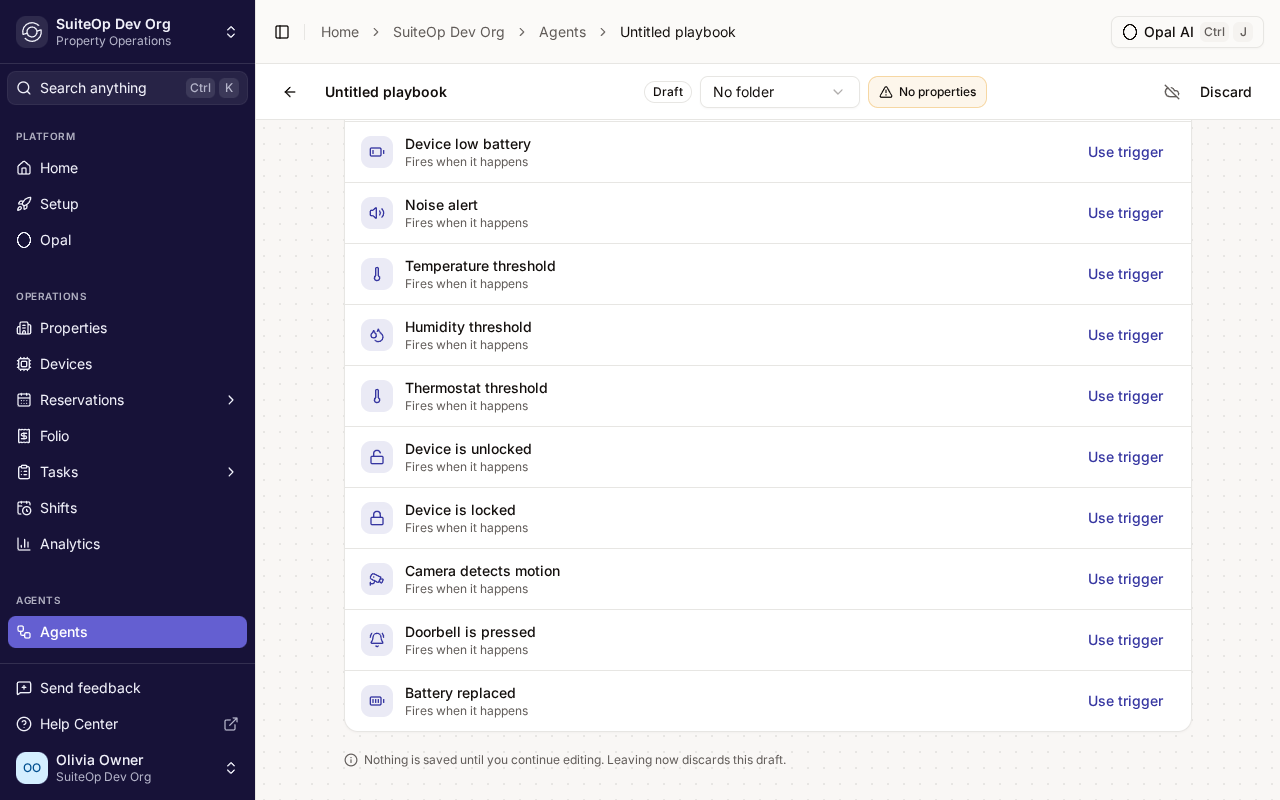
Plan the next battery change the moment you replace one
A new Battery replaced trigger runs a playbook whenever someone marks a device's battery as replaced, now available to everyone.
Just swapped the batteries on a lock? Until now, remembering when the next change was due was up to you.
The new Battery replaced trigger runs a playbook whenever someone marks a device’s battery as replaced. Add a Create task step due, say, 90 days after it runs, and the next battery change is on the calendar before the screwdriver is back in the drawer.
On the device, click Mark as replaced under Battery Replacement. To build the playbook, click Add Trigger and pick Battery replaced from the device triggers.
The playbook runs once for each property the device belongs to.
Battery replaced sits with the other device triggers.
ReservationsJump from your PMS straight to the stay in SuiteOp. When your PMS supports it and the integration's Custom fields push control is on, new reservations from your PMS now get a SuiteOp staff link written onto them, so you can open the stay in SuiteOp from your PMS instead of searching for it.
PropertiesOpen a property without leaving the list. Clicking a property on the Properties list now opens it in a panel beside the list, with its readiness, today's tasks and stays. The full property page is still one click away.
TasksA clearer planning calendar. Stay bars in the calendar's property view now show the booking status, the number of nights, and an arrow when the stay began before the week on screen. The Day view and the Unscheduled panel also tell you when your filters are hiding work, rather than looking empty.
TasksAuto-assign keeps everyone's day on time. Auto-assign no longer hands someone a task that would make their other jobs late, crew and shared jobs included, when someone else could take it on time. When everyone is already over their daily hours, it gives a due task to someone who can finish it on time before falling back to whoever has the least work.
Guest PortalChoose the language guests see first. Each language that's on under Settings, Languages now has a Make guest default button, English included. Guests see the portal in their browser's language when SuiteOp supports it, and in your guest default otherwise.
Guest PortalWallet passes stay with the guest. Guests can no longer share wallet passes that carry door codes from Wallet itself. Apple Wallet hides the Share button, and a Google Wallet pass stays with one traveller, on their own devices.
Access codesSee which properties the guest-code setting skips. The guest code setting under Settings, Smart locks now says it applies only to properties with generated codes, counts the properties it skips, and links to Properties to change their code type.
IntegrationsOwners can connect ecobee SmartBuildings and Mews themselves. Property owners can now connect their own ecobee SmartBuildings and Mews accounts from a connect link you send them. For Mews, the owner picks which services to sync.
Guest contentSpot guides missing a cover image. The Guides list now shows each guide's cover thumbnail, and Guides and Manuals both have a Has image filter.
Mobile appA friendlier mobile app. On the Tasks tab, Create task is now a button at the bottom right, within thumb reach. Report issue lists only your own departments, maintenance and the task's department, every code on a property's full access list has a Copy button, the iPhone time-tracking timer has a colour for each state, and dark mode no longer flashes white between screens.
LanguagesMore of SuiteOp in your language. Department names now show in your language across analytics, costs, member pages and templates, as they already did on tasks, and so do device types on a property's Devices tab. Integration activity headings, task durations and guide categories are translated too, and Dutch emails and wallet passes now use the same informal je as the app.
PaymentsA check before you deactivate a payment account. Mark inactive on a payment account now asks first and tells you how many property and group defaults it will clear. Mark active is still one click.
+51 fixes
Playbooks A step skipped inside a Repeat no longer ends the whole Repeat, so the remaining items still get their turn, and the skip reason shows in your language.
Playbooks Two playbooks that trigger each other by marking guests checked in or out, adding reservation labels or creating service fees now stop after 10 rounds instead of looping.
Playbooks Guest check-in, check-out and verification playbooks no longer run for a stay that moved to another property after the trigger fired.
Tasks Assigning or moving one task no longer reshuffles the rest of the day; everyone else keeps the tasks they hold unless they can no longer do them.
Tasks On mobile, every question in a multi-question checklist group can be answered, and a short pause while typing no longer cuts an answer off.
Tasks On mobile, the Tasks tab no longer shows an error page when you switch the day or team while scrolled down the list.
Tasks General steps placed after the walk-through now appear after it, where the template puts them, instead of at the top.
Tasks Saving a task template no longer silently drops new sections or spaces that have no requirement yet; a message says they weren't saved, and when nothing else changed they stay in the builder.
Tasks A paused task's pause stays visible on the Time window tab when the task runs late or is read the next day.
Tasks Tasks without a property now move to your organization's new time zone when you change it.
Tasks Saving a recurring schedule no longer stalls for up to two seconds.
Tasks On a worker's task link, a signed-in manager's comment, tick or status change now goes through instead of being dropped.
Tasks Members whose role lets them manage only their own availability can now open and save their working hours on web and mobile.
Access codes A new manual door code can no longer reuse a PIN that a departed guest's code still holds on the lock.
Access codes On Seam-connected, Schlage, RemoteLock and TT Lock locks, a guest whose cancelled stay is reinstated while its door code is being removed gets a working code back on the lock.
Access codes Door codes imported from your PMS show as not active yet, valid from check-in, until the stay starts, instead of Active.
Devices Seam-connected locks that relock on their own no longer stay "Unlocked" in SuiteOp after someone opens the door.
Devices Devices on a disconnected integration show their connection as unknown instead of a stale "online".
Devices Yale and August locks whose bridge is offline now show Offline and send the offline alert.
Devices The Devices list says why a lock whose setup never finished needs attention.
Devices A building-entrance lock shared through a property group now lists its properties on the Devices page instead of "No property assigned".
Devices Members with access to only some properties no longer see other properties' names on shared devices.
Devices Archived devices no longer count toward the device totals on the Properties page.
Devices TT Lock entry history keeps arriving after a lock's gateway is unplugged or added.
Devices Changing a thermostat twice in quick succession no longer shows the guest a failure message or makes Alexa report an error.
Devices On mobile, a unit's own lock no longer shows up on its neighbouring units in the same building.
Integrations When a Seam or Calry connection no longer exists on the provider's side, SuiteOp now asks you to reconnect it instead of retrying quietly.
Integrations Broken-integration reminders arrive on schedule again after an earlier recovery, instead of going quiet for a week.
Integrations Hostfully booking history imports no longer stop partway on some bookings.
Integrations Unmapping a PMS listing on a slow connection no longer leaves the old mapping on screen.
Integrations The Apaleo services card names the permission you're missing instead of offering a Try again that can't work.
Guest Portal The guest portal's door code fits on narrow phone screens instead of being cut off.
Guest Portal Links, door-code statuses and the ID-check screens in the guest portal stay readable on dark, purple and mid-tone brand colours.
Guest Portal Apple Wallet passes show the guest's check-out time from the day before check-out, in every region.
Guest Portal A guest's wallet pass updates within seconds once their door code is confirmed on the lock.
Guest Portal The check-in preview shows a Static-code property's real door code instead of a sample.
Guest verification The ID-check selfie camera frames the guest's whole head.
Reservations The reservation panel shows a "Fees (may include cleaning)" row for Guesty and Calry stays whose fees can't be split, so the totals add up.
Reservations Guesty cleaning fees on accounts that report them with VAT included now line up with the rest of the stay's net prices.
Reservations Guesty stays on accounts that mark up fees now include that markup in the other fees and the fee total.
Reservations Avantio owner stays come in as confirmed owner stays, so they show on the Reservations page and under the Owner Stay source, instead of as blocks.
Sign-in Continue with Google works again on the web app.
Settings Switching your language takes effect right away for members whose home region differs from their organization's.
Settings Translated text fields wait for their saved text before you can type, so what you type is no longer replaced when it loads.
Properties Copy WiFi reaches every property in portfolios of more than 500.
Properties Members who can view but not edit properties see check-in instructions read-only, instead of an editor that couldn't save.
Properties Long owner and group names stay inside the property Identity card, so Edit owner stays clickable.
Settings Money fields leave room for longer currency symbols such as CHF and AED.
Settings Billing add-on cards, notification settings and the Members page tabs fit on phone screens.
Settings Error messages appear beside an open side panel instead of covering its buttons.
Opal The Opal page no longer slides under the sidebar, and its Conversations drawer stays out of the way in Arabic and Hebrew.