10 new features · 22 improvements · 88 fixes
Run a playbook on a schedule
Playbooks can now run on a schedule and gather open tasks with the new Find tasks step, now available to everyone.
Wanted a morning list of overdue tasks without putting it together by hand? Until now, a playbook only ran when something happened.
Playbooks can now run On a schedule: on chosen days at a set hour, every few hours, every few days or monthly, in the time zone you pick. Pair it with the new Find tasks step to gather open tasks by department, template, status, assignee or due date, then post the list to Slack or work through it in later steps.
Open a playbook, click Add Trigger, and choose the Schedule category. When Find tasks comes back empty, the run stops by default, so nobody gets an empty message.
The schedule starts when you publish, and a run can begin up to 15 minutes after the hour. You need the Manage agents permission to build playbooks.
See your team's day hour by hour
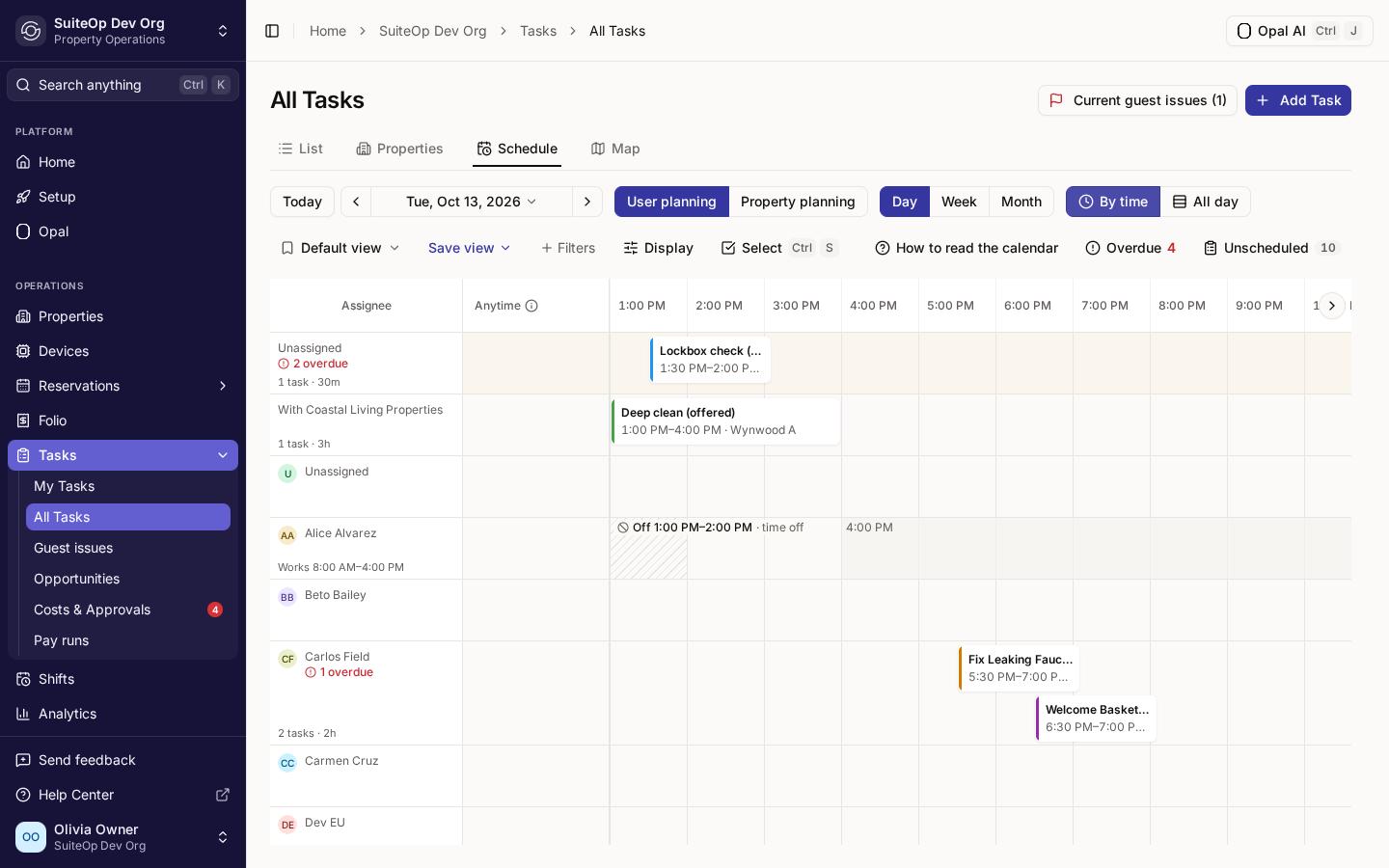
The Day view's By time layout is now an hourly timeline that shows how long each task runs and when each person works, is off, or is free.
Trying to work out who’s free at 2 PM? The Day view used to group work into two-hour bands, which hid how long jobs take and when people are actually around.
By time is now an hourly timeline. Each task stretches across its hours, from its planned start or its time window, for as long as its estimate. A task shorter than about an hour and a half gets a wider card so its name fits, so go by the times printed on the card. Each person’s row shows their working hours, part-day time off and days off, and on today a line marks the current time.
Open Tasks, then All Tasks, the Schedule tab, Day and By time. Drag a task to an hour to plan its start, onto Anytime to clear the planned start, or onto Unscheduled to take it off the day. Each move asks before it saves. Display turns working hours and time off on or off.
Times follow your organization’s time zone, and a task with no estimate counts as 30 minutes.
Choose the door code when you change a guest's code
Change code on a reservation now lets you type the PIN yourself instead of generating a random one, now available to everyone.
A guest asked for a code they’ll remember? Until now, Change code could only generate a random one.
You can now pick: Generate a code as before, or Enter a code and type the PIN yourself. Every door on the stay gets that PIN, and the previous code is retired.
Open the reservation, click Change code, choose Enter a code and type the New PIN: digits only, at your organization’s code length.
SuiteOp checks the PIN against the codes already in use before it installs it. If it can’t use your PIN, it says so rather than quietly swapping in a random one.
Turn on the selfie movement check
You can now switch on the selfie movement check in your identity check step, so guests blink and turn their head to prove the selfie is live.
Worried a guest could hold up a photo instead of taking a real selfie? Until now, the movement check couldn’t be switched on.
The selfie movement check asks the guest to blink and turn their head, and checks those frames against the selfie. A blink with one eye counts too, so guests who can only close one eye can still pass.
Open Settings, then Verification steps, and open your identity check step. In ID check policy, set The selfie movement check to Allow one retry or Stop and review.
It starts on Disabled, so nothing changes until you turn it on. It needs Ask for a selfie to be on. If manual upload is on, a guest who can’t do the movement check can upload a selfie instead, and it goes to your team for review.
Needs attention now flags a missing unit code or guest portal
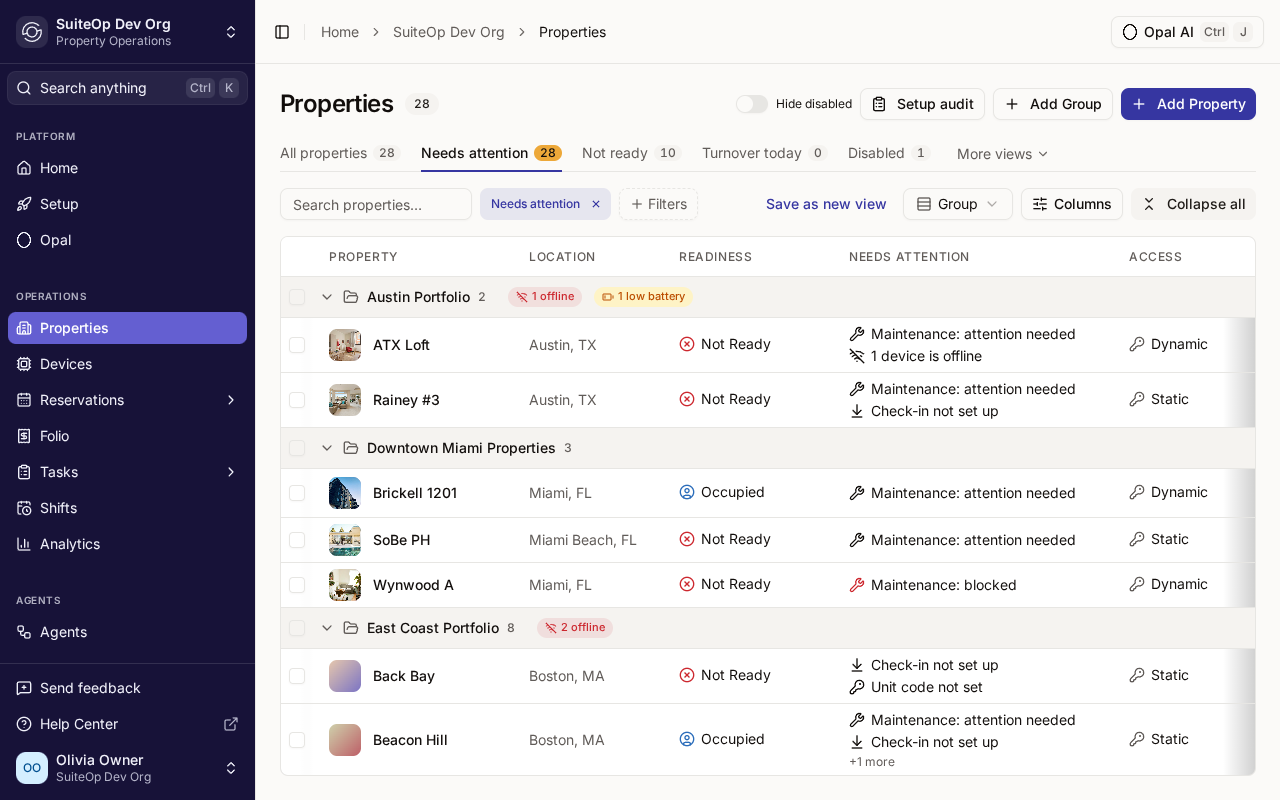
The Needs attention tab on Properties now also lists properties with a blank unit code or no guest portal, so you can fix them before a guest finds out.
Onboarding a lot of units at once? Until now, a property with no door code or no guest portal looked fine on the list until a guest arrived and hit the gap.
Needs attention now also flags Unit code not set when a property uses a fixed unit code that’s blank, and No guest portal when no portal reaches the property. Each reason links straight to the setting that fixes it.
Open Properties and the Needs attention tab. The tab count and select-all bulk edit include these properties too.
A property covered by your organization’s default portal isn’t flagged. A portal assigned through a group or tag counts as well.